


How to Check GPU Compatibility with Your Motherboard

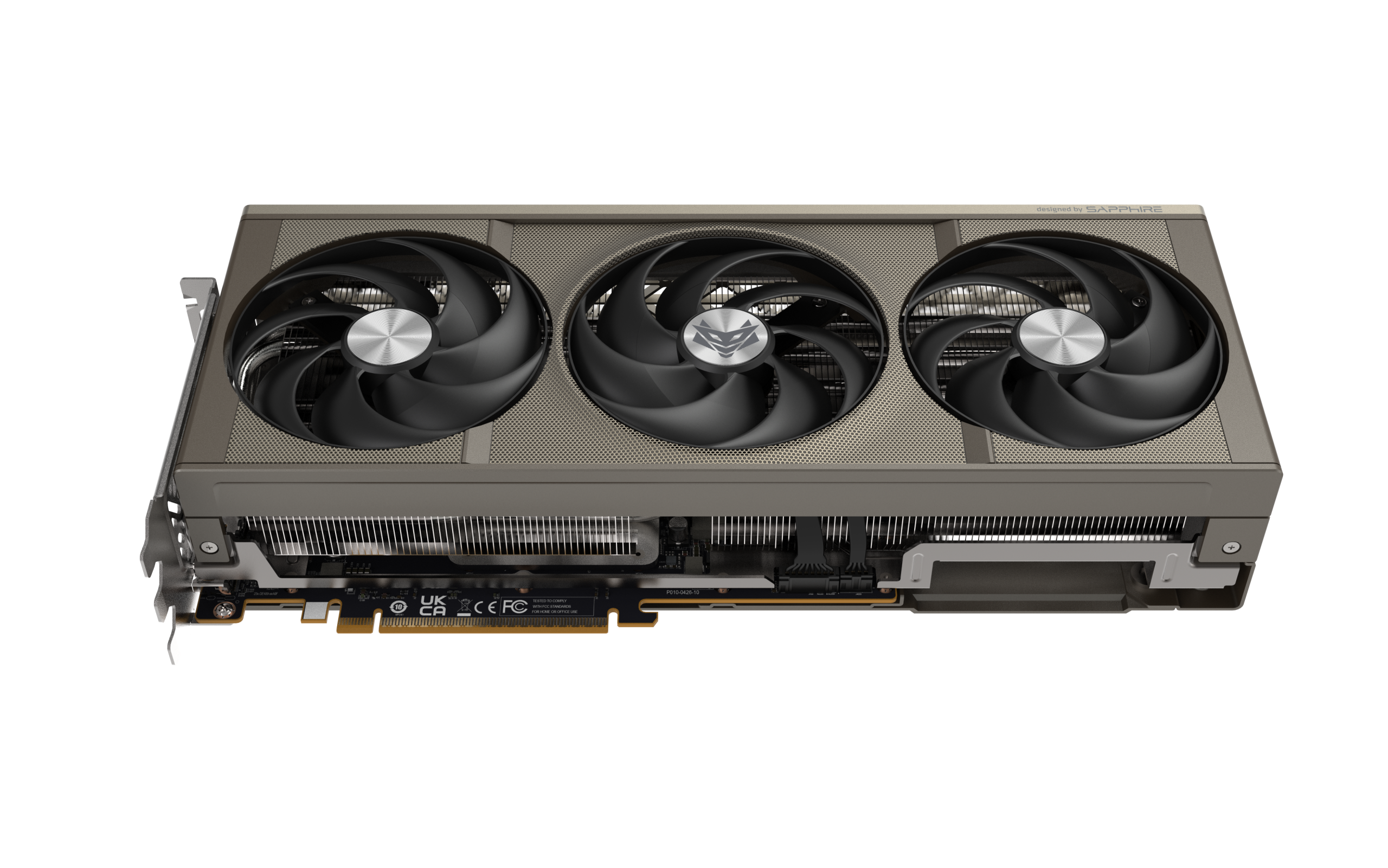
Choosing the right graphics card is essential for building or upgrading a high-performance PC. However, before purchasing a new GPU, you must ensure that it is compatible with your motherboard. Installing an incompatible graphics card can lead to performance limitations, installation difficulties, or system stability issues.
Whether you are building a new Gaming PC or upgrading an existing setup, understanding GPU Compatibility will help you make the right investment. In this guide, we will explain how to check whether a graphics card is compatible with your motherboard and what factors you should consider before buying one.
1. Check the PCIe Slot on Your Motherboard
The first thing to check is whether your motherboard has a compatible PCI Express (PCIe) slot. Most modern graphics cards use a PCIe x16 interface for installation.
Before purchasing a GPU, check your motherboard specifications to confirm that it has an available PCIe x16 slot.
Some important points include:
- PCIe x16 is the standard slot used by most dedicated graphics cards.
- PCIe 3.0, 4.0, and 5.0 are different generations of the interface.
- Newer GPUs generally support backward compatibility with older PCIe generations.
- Using a newer GPU with an older PCIe slot may work, although bandwidth limitations can affect performance in certain situations.
Checking the PCIe slot is the first step towards ensuring proper GPU Compatibility.
2. Check Your Motherboard’s PCIe Generation
PCIe generations determine how much data can travel between your graphics card and motherboard.
Common PCIe generations include:
- PCIe 3.0
- PCIe 4.0
- PCIe 5.0
For example, a PCIe 4.0 graphics card can generally work with a PCIe 3.0 motherboard slot. However, it will operate at PCIe 3.0 speeds.
For most everyday gaming applications, the performance difference may be relatively small, but certain high-performance GPUs can experience noticeable limitations depending on their bandwidth requirements.
Always check the motherboard and graphics card specifications before making a purchase.
3. Verify the Physical Size of Your GPU
Not every graphics card fits inside every PC cabinet. Modern high-performance GPUs can be quite large and may require additional installation space.
Check the following dimensions before buying:
- GPU length
- GPU height
- GPU thickness
- Number of expansion slots occupied
Also, check whether the motherboard layout provides enough clearance around the PCIe slot.
Your PC cabinet must have sufficient space to accommodate the graphics card without interfering with other components.
4. Check Your Power Supply Requirements
GPU Compatibility is not limited to the motherboard. Your power supply unit (PSU) must also support the graphics card.
Different GPUs have different power consumption requirements. Some entry-level graphics cards require relatively little power, while high-end models may need significantly more.
Consider these factors:
- Total PSU wattage
- Required PCIe 6-pin, 8-pin, or 12V-2×6 power connectors
- Recommended PSU capacity mentioned by the GPU manufacturer
- Overall power requirements of your processor and other components
Using an underpowered or poor-quality PSU can cause unexpected shutdowns, crashes, and system instability.
5. Check Processor Compatibility and Bottleneck
Your graphics card and processor work together to deliver gaming performance. Even if your motherboard supports a powerful GPU, an older or weaker processor may limit its performance.
This situation is commonly known as a CPU bottleneck.
For example, pairing a high-end graphics card with an entry-level processor may prevent the GPU from reaching its full potential in CPU-intensive games.
Before upgrading, check your processor model, generation, motherboard chipset, and supported CPU configurations.
Choose a balanced combination of CPU and GPU for better gaming performance.
6. Verify BIOS and UEFI Support
Most modern motherboards support current graphics cards without requiring complicated configuration.
However, older motherboards may sometimes need a BIOS update for improved hardware compatibility.
Before installing a new GPU:
- Check your motherboard manufacturer’s website.
- Review the available BIOS updates.
- Confirm whether any specific compatibility requirements are mentioned.
- Follow the manufacturer’s instructions when updating BIOS.
Avoid updating BIOS unnecessarily. If an update is required, follow the official procedure carefully to prevent installation problems.
7. Use Online Compatibility Tools
If you are unsure whether a graphics card will work with your motherboard, online PC compatibility tools can make the process easier.
These tools allow users to compare hardware specifications and identify potential compatibility issues.
You can also visit the official websites of NVIDIA, AMD, and motherboard manufacturers to check product specifications.
For the most accurate results, compare the exact motherboard and GPU model numbers rather than relying only on brand names.
8. Where to Buy the Right GPU for Your PC?
Finding a compatible graphics card is important for building a reliable and powerful PC. Before purchasing, compare GPU specifications, performance benchmarks, power requirements, and warranty details.
Avika Retails helps PC enthusiasts explore computer hardware and components for their gaming and professional computing requirements. Whether you are upgrading an existing system or planning a new Gaming PC build, choosing the right components can make a significant difference in overall performance.
Visit Avika Retails to explore PC hardware options and make an informed buying decision.
Frequently Asked Questions (FAQs)
Q1. How do I know if a GPU is compatible with my motherboard?
Check whether your motherboard has an available PCIe x16 slot. Also, verify the PCIe generation, physical clearance, PSU requirements, and motherboard specifications.
Q2. Can I install a PCIe 4.0 GPU on a PCIe 3.0 motherboard?
Yes. PCIe is generally backward compatible, so a PCIe 4.0 graphics card can work in a PCIe 3.0 x16 slot, operating at PCIe 3.0 speeds.
Q3. Does every motherboard support NVIDIA and AMD graphics cards?
Most modern motherboards with a standard PCIe x16 slot support both NVIDIA and AMD graphics cards. However, you should check the specific hardware requirements.
Q4. Does motherboard size affect GPU compatibility?
Yes. Motherboard layout and PC cabinet dimensions can affect graphics card installation. Check GPU length, thickness, height, and available expansion space before purchasing.
Q5. Can an old motherboard support a new graphics card?
Yes, many older motherboards can support newer GPUs through PCIe backward compatibility. However, BIOS support, bandwidth, processor limitations, and power requirements should be checked.
Q6. Does a powerful GPU require a powerful PSU?
Yes. High-performance graphics cards generally require higher-quality power supplies with sufficient wattage and the correct power connectors. Always follow the GPU manufacturer’s recommendations.
Q7. Will upgrading my GPU improve gaming performance?
A GPU upgrade can significantly improve gaming performance, particularly when your existing graphics card is the main performance bottleneck. However, your processor, RAM, and other components also influence overall performance.
Final Thoughts
Checking GPU Compatibility before purchasing a graphics card can save you money and prevent unnecessary hardware issues. Always verify the PCIe slot, motherboard specifications, PSU capacity, physical dimensions, and processor capabilities. A well-balanced hardware combination will help you enjoy better gaming performance and a smoother computing experience.
Explore the right PC components with Avika Retails and build a Gaming PC that meets your performance requirements.