


SSD vs HDD vs NVMe: What Storage Is Right for Your Workload?

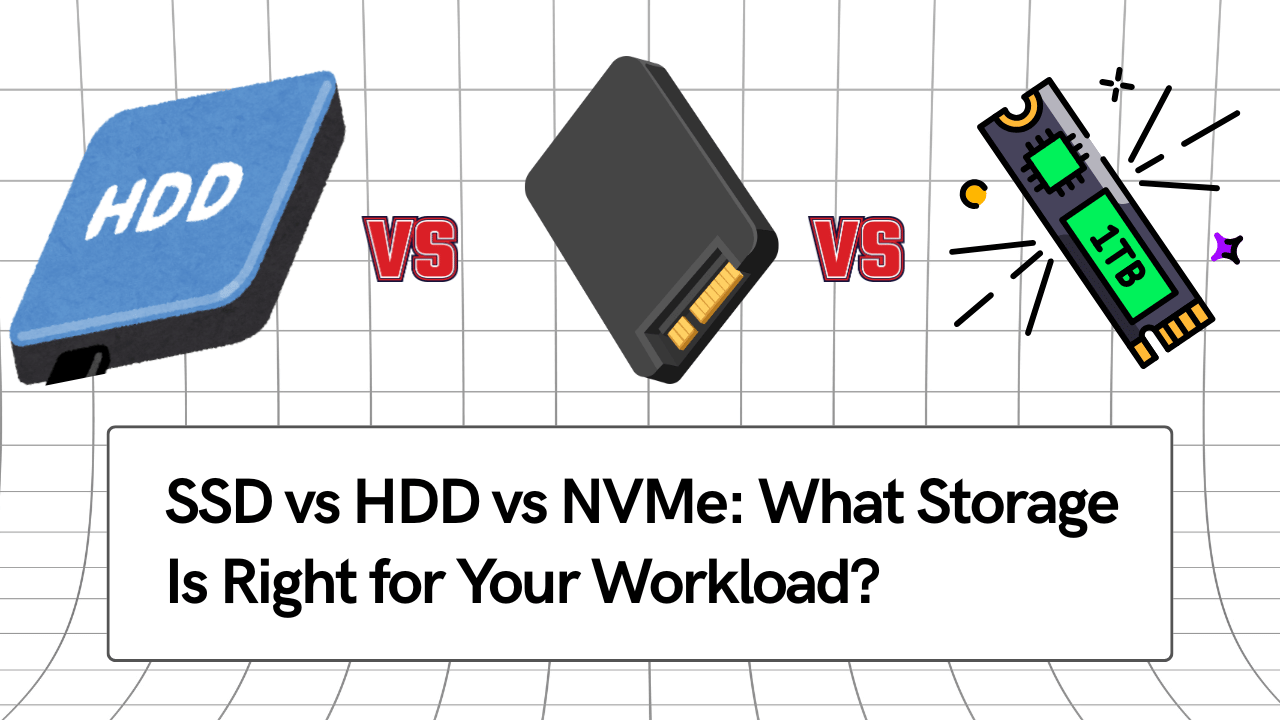
SSD vs HDD vs NVMe: What Storage Is Right for Your Workload: One of the most misinterpreted parts of a computer is storage. The impact of storage type on speed, responsiveness, and long-term usability is often overlooked by users who place a lot of emphasis on the processor or RAM.
It is not about what is “best” on paper when choosing between HDD, SSD, and NVMe. It concerns what is appropriate for your workload, financial situation, and future requirements. This guide helps you select the best option based on your actual computer usage by outlining the true distinctions between these storage types.
Why Storage Choice Matters More Than Most People Think
Storage affects:
- System boot time
- Application loading speed
- File transfer performance
- Multitasking responsiveness
- Overall system “snappiness”
A PC with a powerful processor can still feel slow if storage is the bottleneck. In many real-world cases, upgrading storage delivers a bigger performance improvement than upgrading the CPU.
Understanding the Three Storage Types
Before comparing workloads, it’s important to understand what each storage type is designed for.
HDD (Hard Disk Drive)
HDDs use mechanical spinning disks to read and write data. This is the oldest and slowest storage technology still in common use.
Key Characteristics
- Lowest cost per GB
- High storage capacity at a low price
- Mechanical parts involved
Limitations
- Very slow compared to modern standards
- Longer boot and application load times
- More prone to failure due to moving parts
- Performance degrades with fragmentation
When HDD Still Makes Sense
HDDs are suitable only for:
- Large data storage (archives, backups)
- Media libraries (videos, photos)
- Secondary storage, not primary system storage
HDDs are no longer suitable as a primary drive for modern operating systems.
SSD (Solid State Drive)
SSDs use flash memory with no moving parts. This makes them significantly faster and more reliable than HDDs.
Key Characteristics
- Much faster boot and load times
- Silent operation
- Lower power consumption
- Better durability
Limitations
- Higher cost per GB than HDD
- Slower than NVMe for heavy workloads
Where SSDs Excel
SSDs are ideal for:
- Operating system installation
- Daily office work
- Browsing and multitasking
- Students and professionals
For most users, switching from HDD to SSD is the single most noticeable upgrade.
NVMe SSD (Non-Volatile Memory Express)
NVMe is a newer, faster storage interface that connects directly to the motherboard via PCIe lanes. It offers significantly higher speeds than traditional SATA SSDs.
Key Characteristics
- Extremely fast read/write speeds
- Very low latency
- Designed for heavy workloads
Limitations
- Higher cost than SATA SSDs
- Benefits are workload-dependent
- Requires a compatible motherboard
NVMe is not automatically better for everyone. Its advantage depends on how storage is used.
Storage Comparison: Real-World Differences
| Feature | HDD | SSD | NVMe |
|---|---|---|---|
| Boot Speed | Very Slow | Fast | Very Fast |
| App Load Time | Slow | Fast | Very Fast |
| Multitasking | Poor | Good | Excellent |
| Durability | Low | High | High |
| Best Use | Storage only | Everyday use | Heavy workloads |
Choosing Storage Based on Your Workload
Office & Professional Work
Typical tasks:
- Browsing
- Documents
- Accounting software
- Email and video calls
Best choice:
- SSD (minimum 512GB)
NVMe offers minimal real-world advantage for basic office work. A good SSD already provides excellent responsiveness.
Students & General Users
Typical tasks:
- Online classes
- Assignments
- Light multitasking
- Media consumption
Best choice:
- SSD for the system
- Optional HDD for extra storage
This setup balances performance and cost effectively.
Gaming
Typical tasks:
- Game loading
- Level transitions
- Background applications
Best choice:
- SSD or NVMe for games
- HDD only for storing unused titles
NVMe improves game load times slightly, but does not increase FPS. SSDs are already sufficient for most gaming needs.
Video Editing & Content Creation
Typical tasks:
- Large file transfers
- Rendering
- Timeline scrubbing
Best choice:
- NVMe for OS and active projects
- SSD or HDD for archived files
NVMe shows clear benefits here due to heavy read/write workloads.
Developers & Power Users
Typical tasks:
- Compiling code
- Virtual machines
- Large datasets
Best choice:
- NVMe as primary drive
- Secondary SSD or HDD for storage
Low latency and high throughput make NVMe valuable for development environments.
Common Storage Mistakes to Avoid
- Using HDD as the primary OS drive
- Buying very small SSDs that fill up quickly
- Choosing NVMe without compatible hardware
- Ignoring future storage expansion needs
Storage decisions should be made with 2–3 years of usage growth in mind, not just current needs.
Ideal Storage Configurations (Practical)
- Office / Student PC:
SSD (512GB) - Gaming PC:
SSD or NVMe (1TB) + optional HDD - Editing / Creator PC:
NVMe (1TB) + SSD/HDD for storage - Business PC:
SSD or NVMe with upgrade flexibility
Final Conclusion: Which Storage Is Right for You?
- Choose HDD only for bulk storage
- Choose SSD for most users and daily work
- Choose NVMe for heavy workloads and professionals
There is no single “best” storage type for everyone. The right choice depends entirely on how the system is used, not marketing numbers. Compared to pursuing high specifications without context, a balanced storage setup significantly increases speed, reliability, and long-term value.